User management
All agents who need to have access to the live chat, need to have a agent-user created in the CAI platform, and connected to the corresponding ESM agent. To setup a chat user, following tasks need to be done:
Create a user in myInteliWISE
- Login to my.inteliwise.com
- Select “Users”
- Select “Create new operator”
- Fill in operator name and email for registration
- User receives a confirmation email to this address, but email is not used for any functional purpose
- Language of the confirmation email depends on the InteliWISE account language
- Confirmation email does not require any actions from the user
If you wish the user to automatically be on pause and not receive chat sessions upon ESM login before making themselves active, select “enable LiveChat pause on login”

Set user settings in myInteliWISE
- After creation, go to edit the newly created user in myInteliWISE
- Following information needs to be populated in order to make all functionalities of the chat available:
- Name - how the user is identified in the chat for the end user and in the administration and reporting of the chat
- Chat limit - how many concurrent chat sessions the user can handle. If chat limit for all agents is reached, visitor is placed in a queue until there is capacity for the agents to receive chats again.
- External ID - needs to match the value of the chat member field set in ESM. The field that is checked is set in efecteChat.integration.ticket.chatMembers.attributeCode platform setting (default value is email)
- LiveChat skills - select the skills that should be used to route discussions to this user. Note that the same user can belong to multiple skill groups. Used skill group is defined in the chatbot story configuration.
Assign the agent console ID for the ESM user
- Copy the value fromAgent Console ID - value cannot be changed, but this needs to be set in ESM user permissions
- LiveChat skills - select applicable skills from available list.
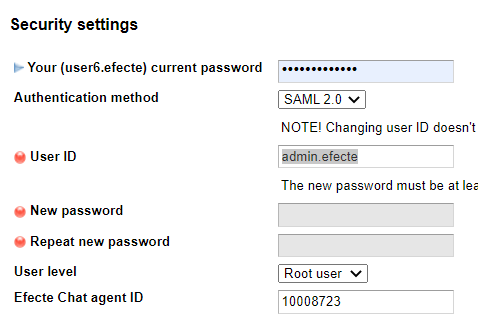
- Set the Agent Console ID for the ESM user in ESM admin settings
- Find the user from ESM user permissions list
- Open the Settings of the user
- Add the copied value to Efecte Chat agent ID
- Note! Efecte Chat agent ID field is not available unless the tenant API key has been correctly set
Allow the user to access Efecte Chat module
In environments with version 2023.1 or newer, make sure that the user has permission to Efecte Chat module via their assigned role(s). You can also create a dedicated role for Efecte Chat agents.
Allow permissions to related templates
Make sure that the agents have access to folders, templates and attributes related to the used chat configuration, such as chat session and used ticket template.
Table of Contents